When I was a military instructor, I spent lots of time teaching in the classroom. I remember the day interactive whiteboards (IWB) were installed because it transformed both how I taught and how my students learned.
Just as the name implies, IWBs combine computer technology with whiteboard capabilities. It requires an IWB and a projector to be connected to the computer. The IWB projects your computer screen and functions as a touchscreen enabling you to navigate the computer or run programs with the touch of your finger or a pen tool. You can digitally write on the screen, highlight selected areas and much more.
Because of its interactive capability, it is important to calibrate the IWB to align your touch points to the desired areas on the computer. Failing to calibrate your IWB can result in embarrassing and frustrating moments during presentations. To ensure your IWB performs optimally, follow these simple steps:
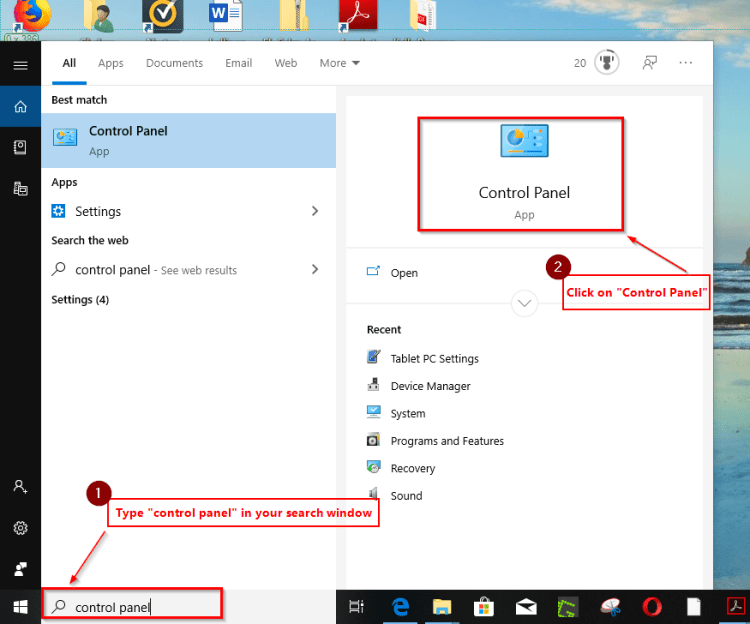
- 1. Open your Control Panel. From your computer, you can type “control panel” into the search panel at the bottom left corner of the screen, then press Enter on your keyboard.
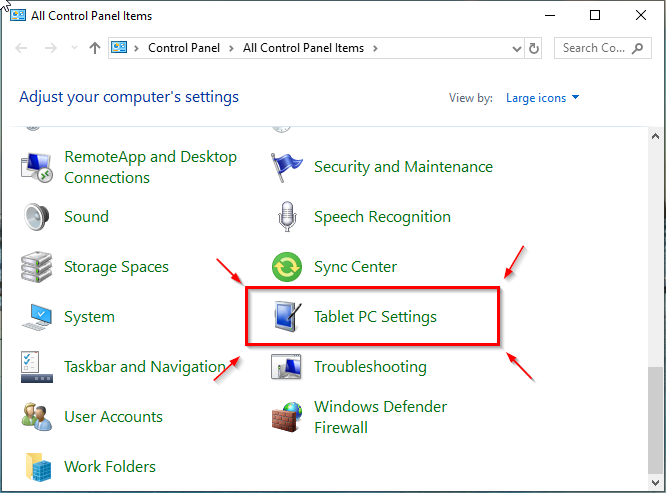
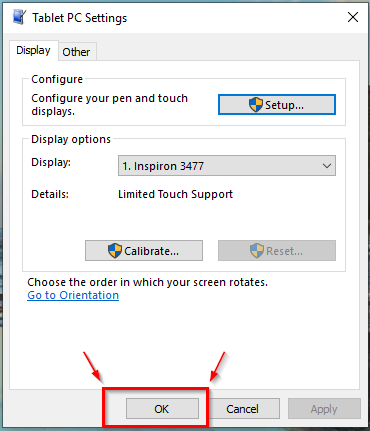
- 2. Select Tablet PC Settings.
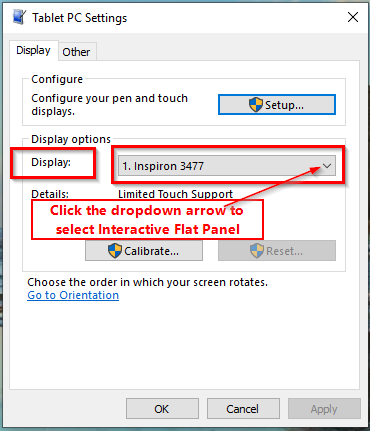
- 3. Ensure the Display option is set to Interactive Flat Panel screen. If it is not, then Click on the dropdown arrow to select.
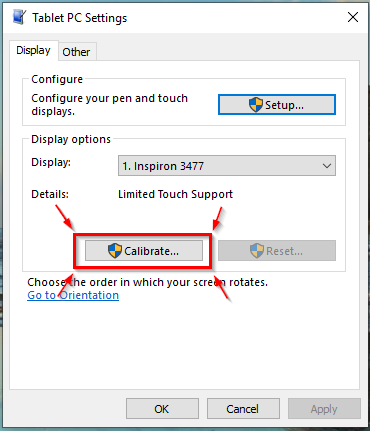
- 4. Click Calibrate.
- 5. Touch each target using either your finger or an interactive pen. Ensure you touch the target in the center of the cross.
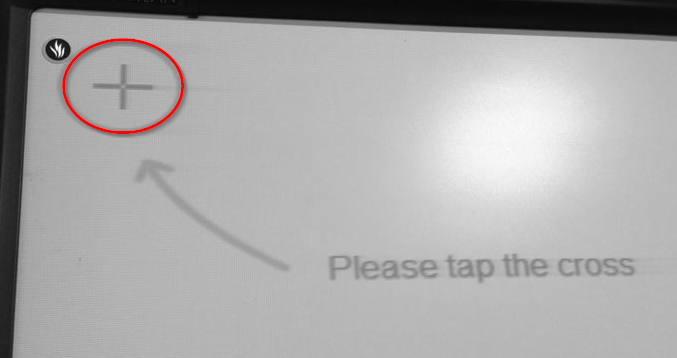
Higgs, D. (2016). How to Calibrate the Promethean Pen. EVSC iCats. Retrieved from https://www.evscicats.com/2013/08/08/how-to-calibrate-the-promethean-pen/
- 6. When finished, click OK on the Tablet PC Setting to set your calibration. Now you are ready to use your IWB!
 Defining New Media